
Agent Evaluation is a new(ish) feature in Copilot Studio. So new, that it went generally available first in March 2026. It's the first built-in tool in Copilot Studio that lets you run repeatable test suites against your agent so you don't just open the chat window and hope you covered everything 😄.
What's it actually for?
It is the right tool when you want to verify that your agent gives correct, grounded answers across a defined set of questions. And works best for agents where AI is making decisions, choosing which action to take, which knowledge source to search rather than following a fixed topic flow.
Use it to check that knowledge sources return accurate answers, catch regressions after you update documents or instructions, build a baseline before launch and track quality over time.
Quick tip: Test how the agent handles the questions it shouldn't answer. That one makes you catch more than you'd expect 😅.
It has limits though. If you need to check that the right topic fires for the right input, agent evaluation won't help you there, that's what the Copilot Studio Kit is for. Same goes for validating how things render in a specific channel - Adaptive Cards, UI behavior, buttons all that needs end-to-end browser testing. And if you're in a GCC environment: user profiles can't be added to test sets so the similarity method isn't available there.
Important!: Agent evaluation doesn't replace responsible AI review or content safety checks. An agent can pass every test case you write and still produce something it shouldn't. Keep those processes separate and test for both!
What it does
You build a test set and run it against your agent. For each test case you can choose one or more test methods (General quality is always chosen as default). The options are as follows:
- General quality - the default starting point for most agents. It scores on relevance, groundedness, and completeness using an LLM as the judge and you don't need to write an expected answer. Score out of 100%.
- Compare meaning - checks whether the response matches the meaning of your expected answer, not the exact words. Good for agents that paraphrase from source documents. Score out of 100%.
- Text similarity - measures how close the response text is to your expected answer. It's stricter than 'compare meaning', but the quirk is that it can miss differences in meaning, so a response that scores well here might still say something actually wrong. Score out of 100%.
- Exact match - is zero tolerance: Either the response matches your expected answer or it doesn't. Use this for structured output like IDs, dates or fixed responses. Pass/fail.
- Keyword match - checks whether specific words or phrases appear in the response. Useful for safety checks, required disclaimers and must-include phrases. Pass/fail.
- Tool use - verifies that the agent called the expected tools or topics to generate an answer, so not just what it said, but what it did. Especially useful for autonomous agents. Pass/fail.
- Custom - lets you define your own criteria in plain language. Flexible, but needs careful and precise instructions, as vague criteria produces unreliable scores. Pass/fail.
You can also mix methods on the same test set. What I have seen is that people use 'general quality' for most cases, 'exact match' for anything with a structured output and 'tool use' for anything that calls an external action.
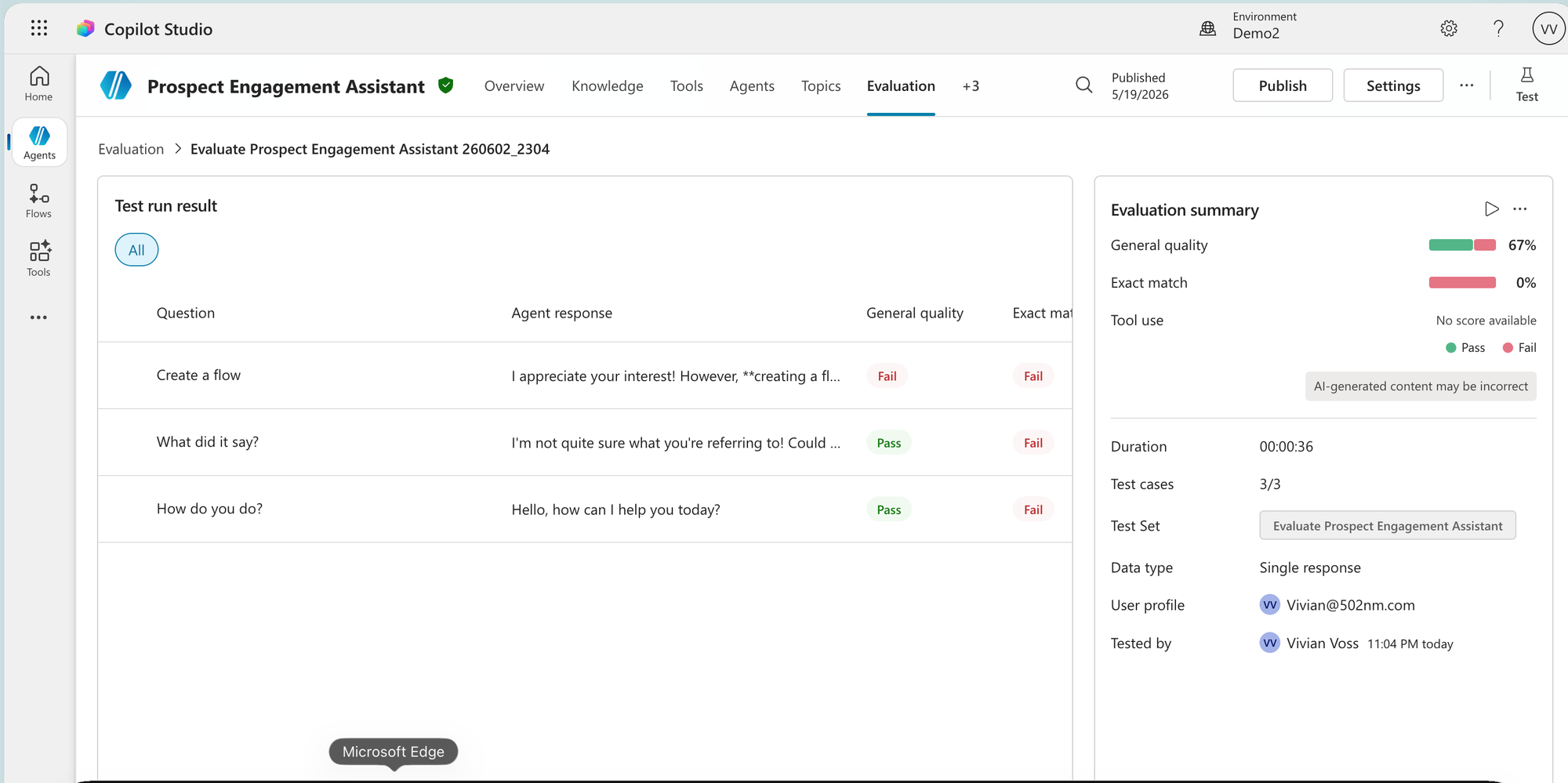
Results come back as a table with a row per question. The columns show the question, the agents response and one column per test method. There are usually more columns than fit on screen at once - scroll horizontally to see all of them. Scored methods like General quality show a percentage (unless it fails, then it shows fail); pass/fail methods like Tool use show Pass or Fail per row. The summary panel on the right shows all methods in a percentage and "No score available" for the methods that fail completely.
Setting up your first evaluation
- Go to the Evaluation tab on your agent. If you don't see it, check to see if you have opened up all tabs available and if you still don't find it in the list of tabs, then your environment might need an update to the latest Copilot Studio version.
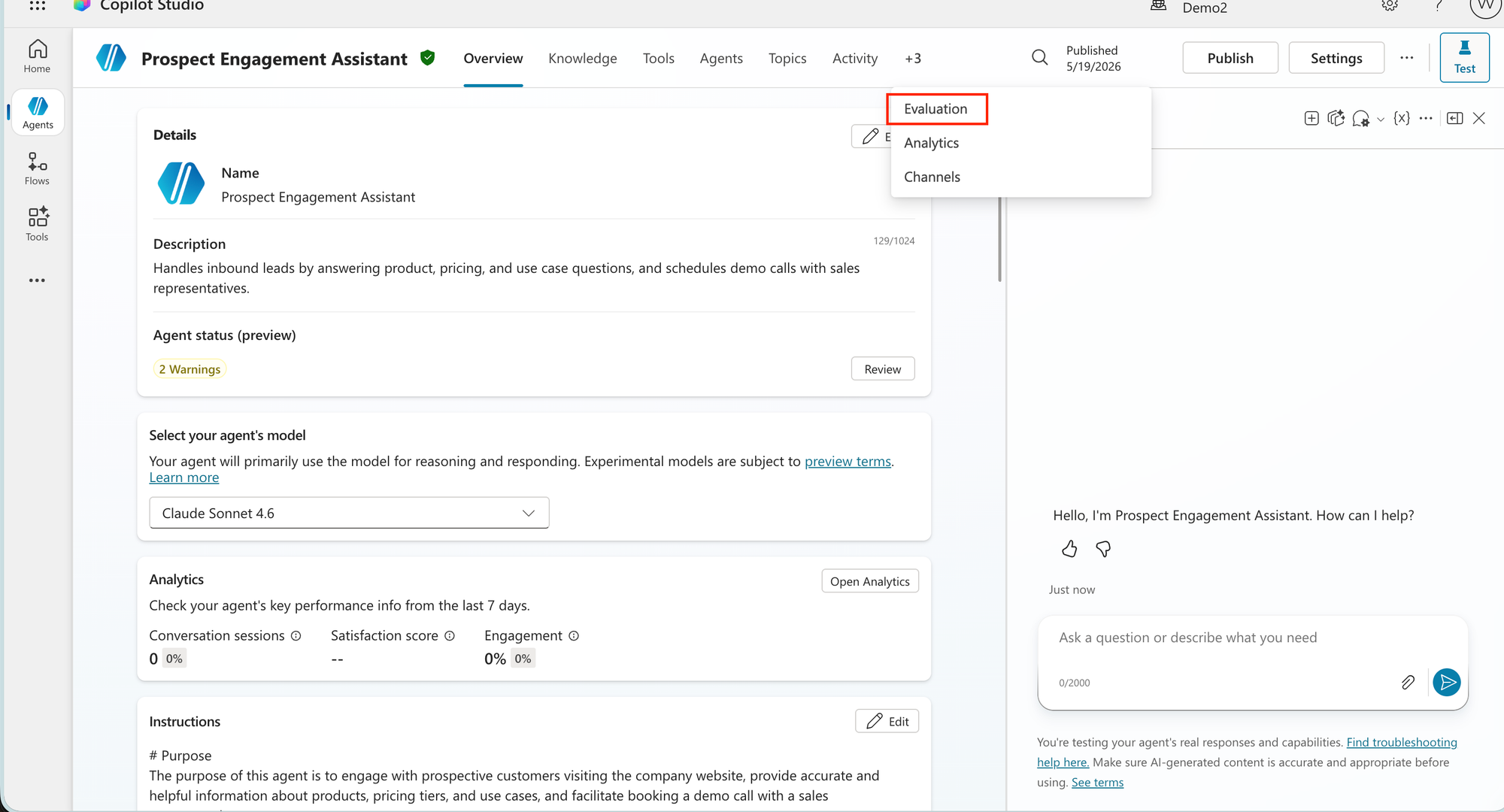
- Click New evaluation - You'll be asked to pick a data type first.
- Single response checks how the agent handles a specific question and is best for targeted testing of individual capabilities.
- Conversation (preview) checks the quality of longer back-and-forth interactions, which is better for general assessments of how the agent holds up across a full exchange. As conversation is still in preview, the post here focuses on 'single response' type.
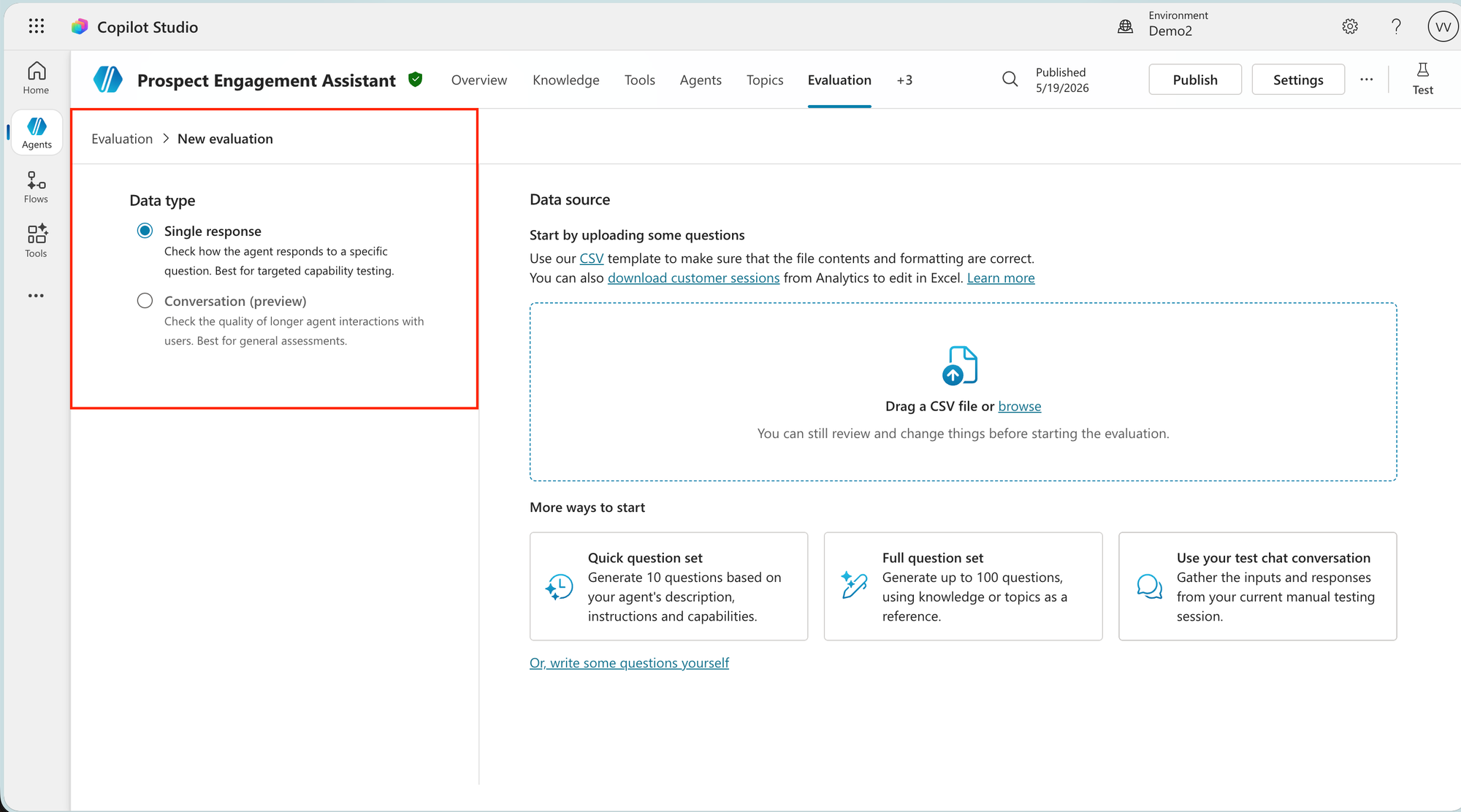
- Add your test cases - There are several ways:
- Upload CSV - Drag in a file or browse for it. Fastest way to get bigger test cases in quickly. More on the how to on this, below.
- Quick question set - Generates 10 questions based on your agent's description, instructions and capabilities. Good for getting started, but don't rely on it to cover everything.
- Full question set - Generates up to 100 questions using your knowledge sources or topics as a reference. Better for targeted coverage.
- Use your test chat conversation - Pulls in the inputs and responses from your current manual testing session.
- Write some questions yourself - Type questions and expected responses directly. Best for critical cases where you know exactly what the outcome should be.
- Write specific expected answers - "Here are our office hours: Monday–Friday, 9am–5pm CET" is much better than "tell the user the office hours." The scoring model compares the agents response to what you wrote, so vague expected answers produce unreliable scores. For 'general quality' you don't need an expected answer at all, but for 'compare meaning', 'text similarity' and 'exact match', you do.
- Click Run - Twenty to thirty cases in a standard environment usually finishes within a few minutes, but agents that call external connectors or have large knowledge sources take obviously longer 😁. (I have had it sometimes "hang" a bit, a refresh to the page usually has helped there).
- Review results - Click any row to see the full response next to your expected answer and the score breakdown. A failing row isn't always wrong, as sometimes the agents answer is correct but phrased differently from what you wrote. Check manually before assuming there's a real problem.
- Fix and re-run - Update knowledge sources, instructions or trigger phrases based on what failed, then re-run to confirm nothing that was passing is now broken.
The CSV upload
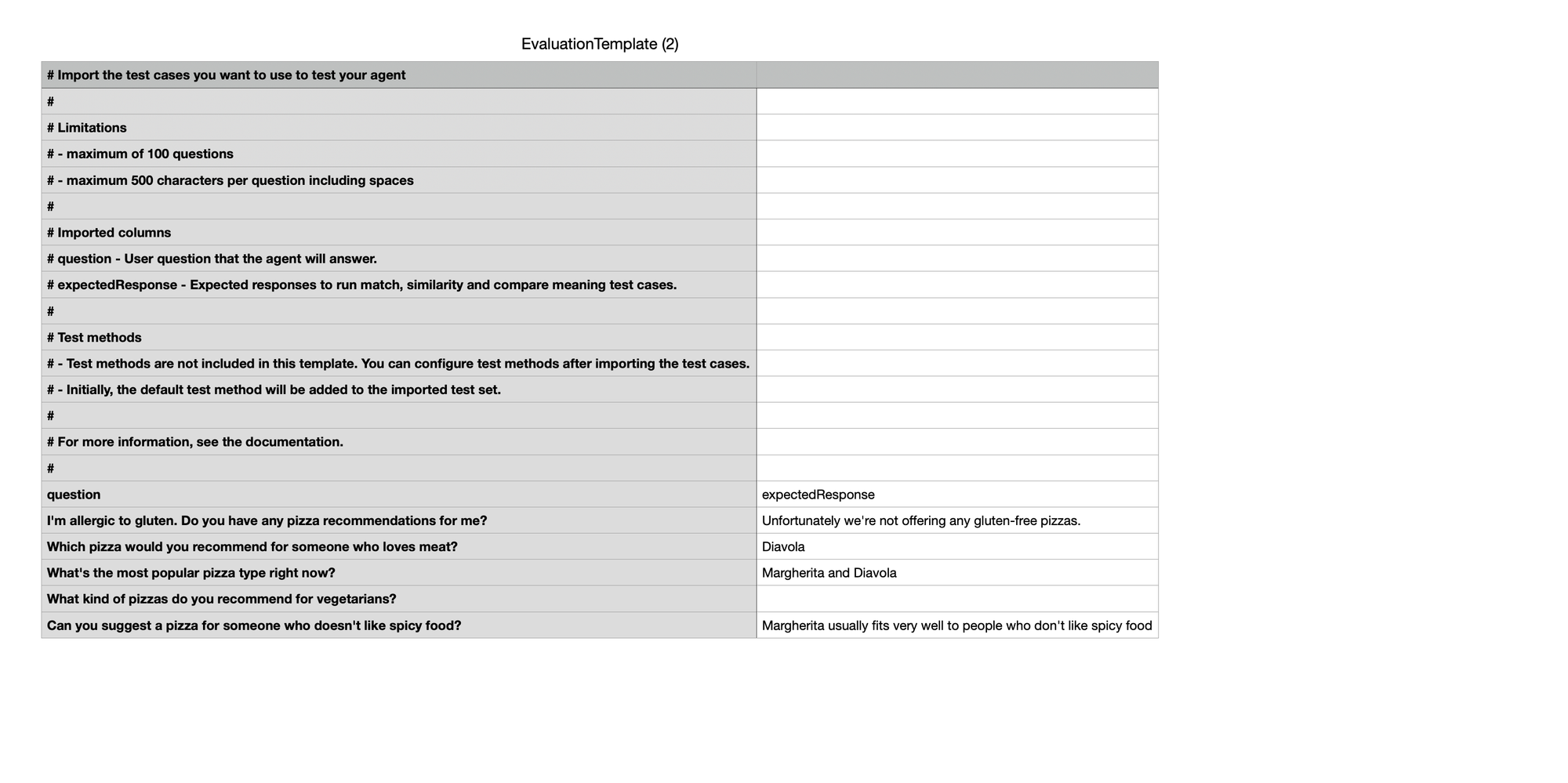
The CSV only needs two columns: question and expectedResponse. Max 100 rows and max 500 characters per question including spaces.
Test methods are not part of the import, no matter that the Learn documentation says it is 😅. You configure them after uploading and Copilot Studio applies a default test method to the imported set first.
So the process is: upload your questions and expected responses, then set the test methods on the right side of the screen like you would when creating the test set in any other way.
Download the template from the New evaluation screen as it includes the correct column names and some example rows. The comments at the top write out the limitations clearly. Worth a quick read before you build your own file 😄.
Building a test set that actually means something
The most common mistake I see is test cases that only cover the happy path. Questions phrased exactly the way the agent was designed to handle them, with expected answers that are basically the text from your documents.
A useful test set needs more than that. Include the obvious questions (about five to eight per main topic), but also throw in some informal phrasings, questions that sit on the edge of what the agent can and can't help with and things that are clearly out of scope to make sure it declines gracefully. Also, add some tricky ones, like "ignore your instructions." That always leads to fun results 😁.
Don't forget questions that should be answered but aren't covered in your documents yet. Those are the ones that show you where your knowledge sources have gaps.
Thirty to fifty test cases is workable for most agents and users. More than that and you spend more time maintaining the test set than actually fixing the agent 😄. Choose the amount of test cases to in correlation to the complexity of the agent.
Things worth knowing
- You can only run one test at a time (for the same agent) - When creating test runs, remember that different tests will not take the same time to run through. Single run tests are done much faster than trying the conversation option. And once the previous test is done, you can only save new evaluations, but not run them.
- Don't aim for 100% - Some failures are fine and normal. It just means that the agent phrased a correct answer differently from what you wrote. Make sure to go over and verify the results. The goal is a stable pass rate you can track over time, not a score to show someone.
- Run evaluations before and after every knowledge source update - New documents can introduce grounding issues. Edited documents can quietly break test cases that were passing before.
- Watch the General quality score after changes - If it drops, the agent may be drawing from sources it shouldn't or new content is being retrieved in unexpected ways. General quality is the closest signal you have for this as there's no way to drill further into the breakdown than what the Evaluation summary panel shows.
- Results are only kept for 89 days - Export after each run (or what makes sense for your business) and store somewhere you control - SharePoint, Dataverse, OneDrive, wherever fits your setup and cost limits 😁.
Watch out for these!
- Scores vary between runs - The scoring uses an LLM to compare responses to expected answers, so a case that scores 85% in one run might score 78% in the next. Look at trends across runs, not individual scores.
- The AI question generator sometimes produces out-of-scope questions - It guesses based on your agents description and instructions - including things your agent is explicitly not supposed to handle. Review generated questions before adding them.
- Conversation testing is possible (preview) - The setup is the same as single-response, but you just have less method options and it will take much longer than the other type 😁.
When you click New evaluation you'll see a Conversation option alongside Single response and that's the entry point.
How this fits in a broader testing strategy
Agent Evaluation is just one layer, not the whole stack.
The Copilot Studio Kit (maintained by Microsoft Power CAT) covers other parts. Agent Evaluation is fast, in-product and AI-assisted whereas the CS Kit is deterministic and enterprise-grade: it validates exact topic routing, Adaptive Card attachments, orchestration plan correctness and produces full audit trails for compliance. It also integrates into CI/CD pipelines, but the setup cost is higher as it needs Dataverse and optionally Azure Application Insights.
My suggestion: Start with Agent Evaluation during development then add the CS Kit when you're approaching production and need release gates.
Agent Evaluation can also be triggered programmatically, not just from the UI. If you want evaluations to run automatically on a schedule or as part of a deployment pipeline, that's the path. I will have a post in the future about the API options.
I also got a question recently about using Playwright for agent testing and that isn't really what that is for. Not in the sense that most still used agents for.
Playwright verifies that the UI renders correctly, that the message appeared in Teams, that the Adaptive Card displayed the way it should, that a button triggered the right action. Agent Evaluation tests whether the answer is correct and grounded. They don't overlap, so if you're deploying to a channel with custom rendering or integration logic, you need both to cover all parts.