
The testing canvas is your new best friend in Copilot Studio 😁. It works both when your agent is in draft or published state and is always just a click away.
Most people use it by typing something and seeing what comes back and that's fine for a quick sanity check, but there's more going on here that's actually useful for testing.
It's more than just a chat window
There are two different ways you'll see the test canvas, depending on which settings you have turned on in Copilot Studio.
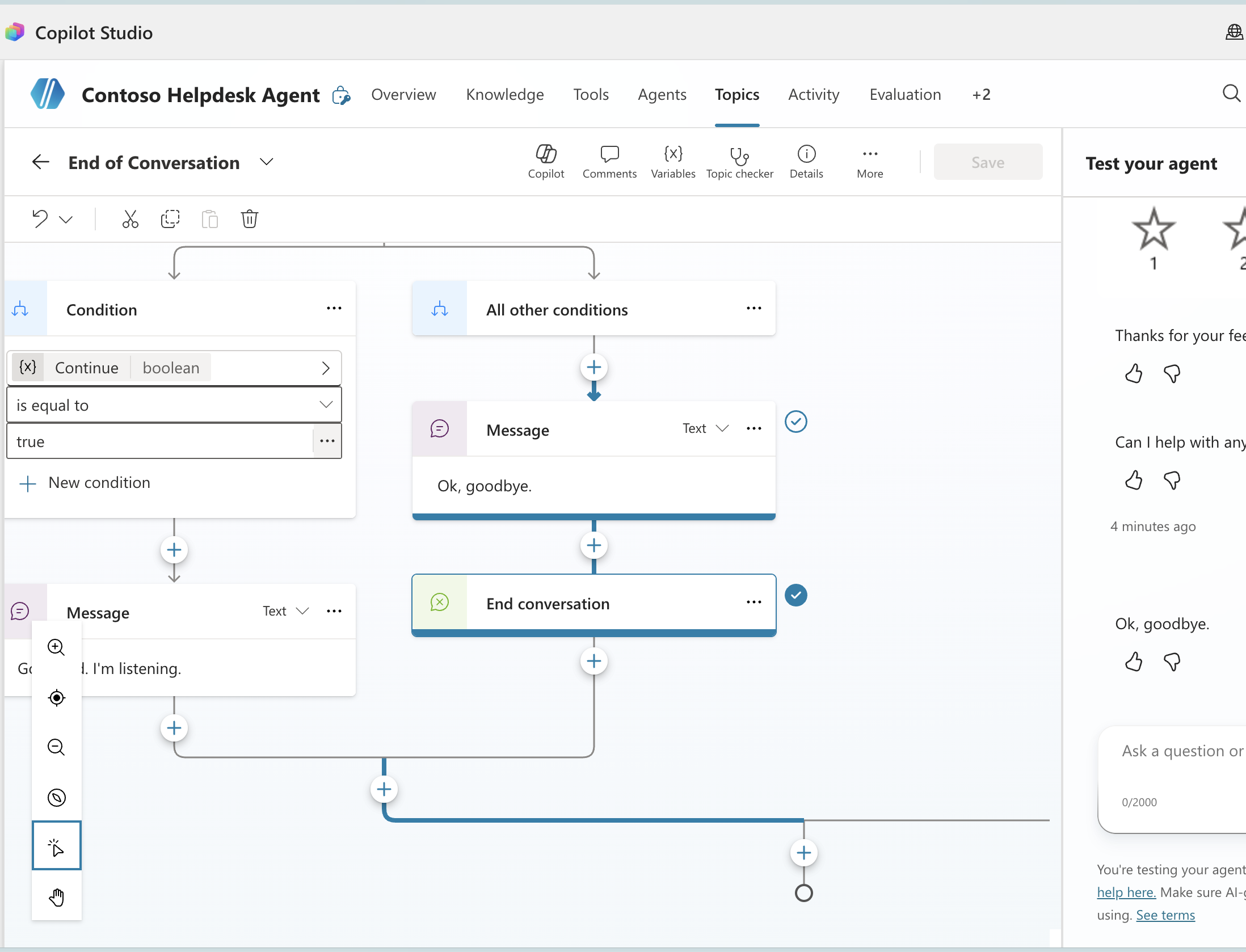
If you're inside a topic in the authoring canvas (with the track between topics feature turned on), the chat area appears as a side panel on the right and you will see the full conversation flow to the right. As the conversation runs, the active node in your topic flow gets a dark blue border and a check mark next to it. You can watch the exact path the agent takes through your flow in real time. When something goes wrong, you can see exactly where in the flow it happened.
If you have the show activity map when testing turned on, you get the execution panel also on the left, but it looks a bit different. This option shows topic transitions as the conversation moves — each topic that fires appears as a block in sequence, and you can click any block to see its details. The conversation runs on the right.
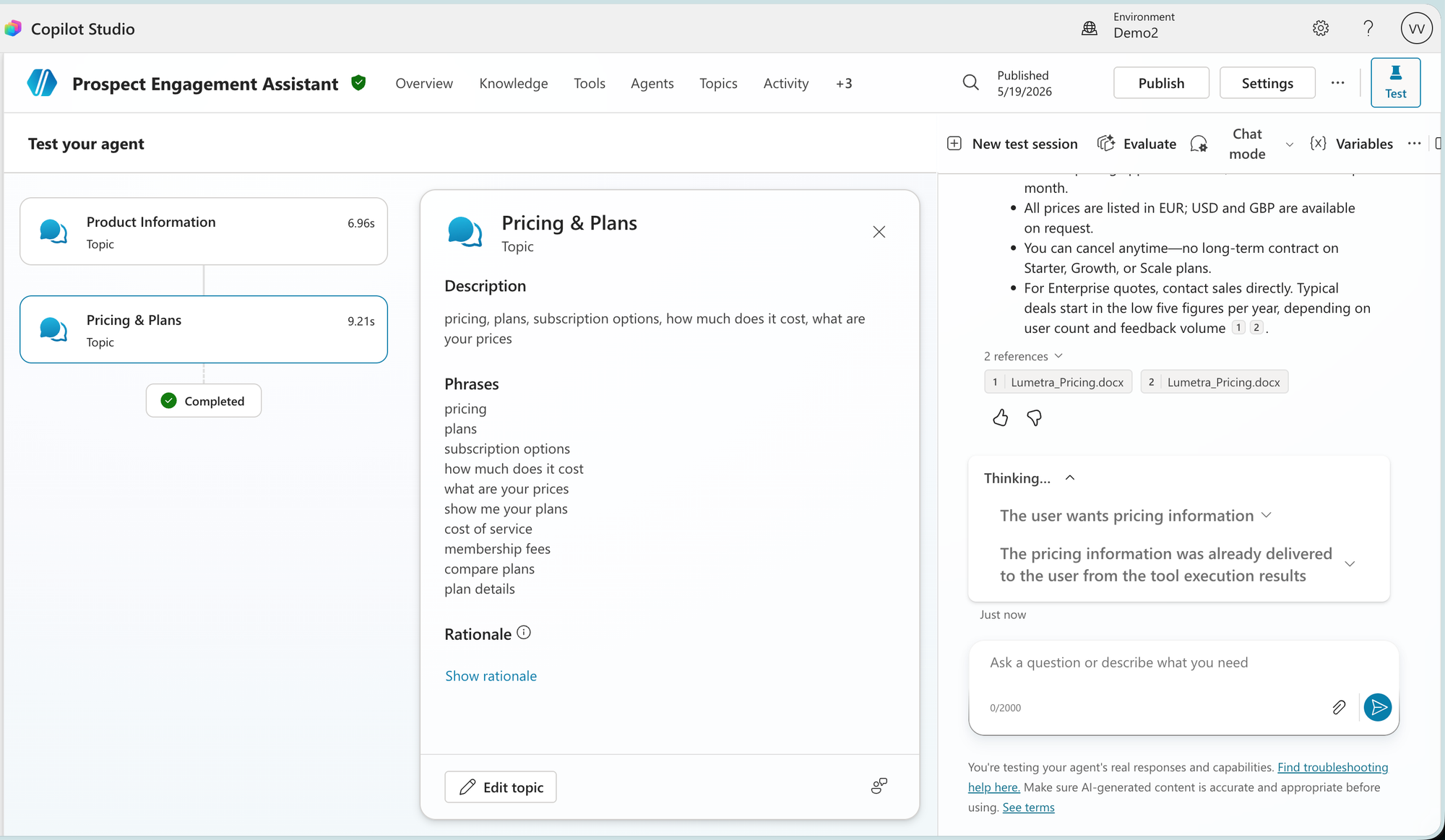
This is the part that can get a bit confusing. At least, it did for me 😁. In the next blogpost I will dive deeper into those 2 options and the difference of them. Either way, it's a live execution visualiser, not just a chat window.
How to actually test a topic
- Open your agent in Copilot Studio and go to the Topics list.(Opening the Topics tab is optional, Test button is available at any tab of the agent)
- Click the Test button (top right). The Test Canvas opens.
- Type a message that should trigger the topic you want to test. Watch the canvas — the topic that fires should highlight.
- Check which topic fired. If it's not the one you expected, the issue is in your trigger phrases or the AI intent matching. Add more varied trigger phrases to the intended topic and test again.
- Follow the active node as the conversation progresses. Are the right branches being chosen? Are conditions evaluating the way you expect?
Opening the test canvas
- If the conversation jumps to a different topic mid-flow, a topic redirect or an AI-generated handoff caused it. Check the Conversation Trace (topic of next post) to find the exact reason.
- Reset before each new test using the New test session button at the top. This clears all variable values and conversation history. Don't skip this — stale variables cause more confusing test results than almost anything else.
- Test beyond the happy path. What happens when the user says something unexpected, types a partial phrase, or accidentally triggers the wrong topic?
Things worth knowing
Test after you build each topic, not just when something breaks. Catching a trigger mismatch right after building takes two minutes. Catching it three weeks later, after five more topics have been added, takes significantly longer and usually involves more confusion about what changed.
One thing to know about the authoring canvas view: by default, when the conversation moves to a different topic, the canvas stays on the topic you were looking at. It doesn't follow. Under the "..." menu in the toolbar, there's a Track between topics toggle. With it on, the authoring canvas automatically navigates to whichever topic is currently active as the conversation moves. With it off, you stay where you are and have to navigate manually.
Type like a real user while testing, especially with typos included. "pasword reset", "oder statu" that's how people actually end up typing. If your trigger phrases can't handle minor variations, the agent won't hold up in production.
Quirks that will catch you out
- Variables from the previous conversation persist if you don't reset. Clicking on the "New test session" button clears them - just closing and reopening the panel doesn't always reset global variables. If a test is producing results that don't make sense, reset and try again before assuming there's a bug in your flow.
- Adaptive cards look different in the test canvas than in production channels. A card that renders fine here might be off in Teams or the web chat widget. Always test adaptive card responses in the actual target channel before you publish.
- The topic highlight sometimes lags in complex agents or when the agent is making generative AI calls. The conversation moves forward but the canvas catches up a step late. It's just the visual part that lags, everything else is still running. Use the Conversation trace for the reliable version of execution order.
- Editing the agent while a test is in progress can leave the canvas showing stale flow information. If you make a change mid-conversation and the highlight stops updating, reset and start the test over.