
Variables are the quiet killers in Copilot Studio agents. The topic logic looks correct, the conditions look correct, the flow looks correct, but the agent still does the wrong thing because a variable is null or holds a string when the condition expects a number or was never set because an action failed silently three steps earlier 😅.
The Variable Inspector is how you catch this before users do.
Where to find it
There are two variable panels in Copilot Studio and they luckily also have different purposes 😁.
The {x} button in the test canvas toolbar opens a variable view that shows Activity variables: system properties like Activity.Channel, Activity.From.Name, and Activity.ChannelId and also your custom variables. These reflect the incoming message and channel context. They don't change as your topic runs, so this panel won't help you debug topic logic.
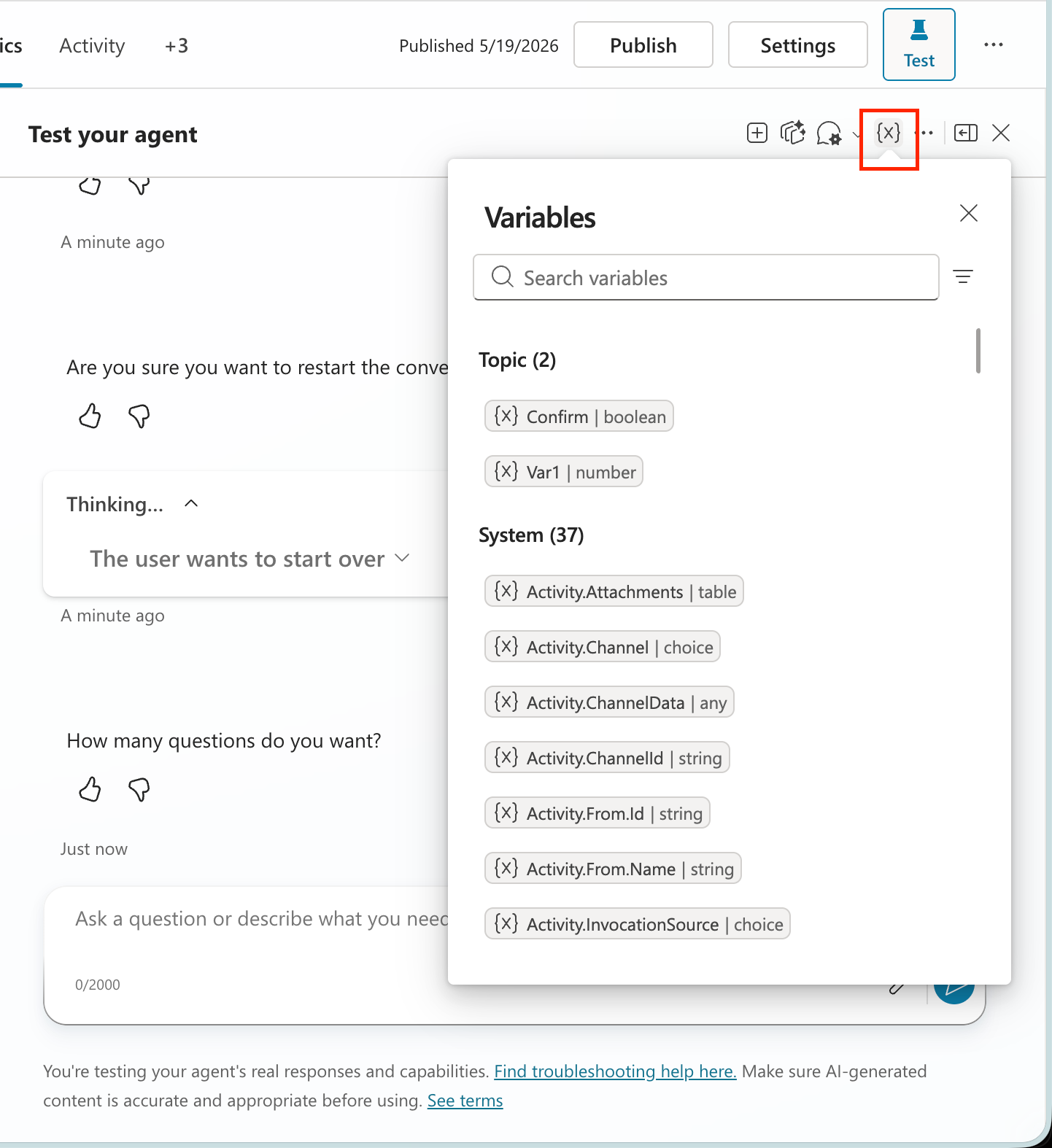
Also, it will not show anything unless you are running a test. If you are running a test and it still tells you that "no variables are used" and you know you have some, then it is time to start troubleshooting 😁.
The Variables tab in the topic editor toolbar (between comments and topic checker) is where you troubleshoot and test your custom variables. Click it and you'll see two sub-tabs: Browse and Test.
- Browse shows variable definitions: what variables exist in the topic and their types. No live values.
- Test shows live values during an active test run. This is the one you want for live testing.
Select Test, then run a conversation from the Test Canvas on the left. Topic and Global variables will show (0) until the conversation hits a Set Variable step and that's expected. Once a Set Variable node executes (look for the blue checkmark on the node), the value appears here.
Easy mistake: if the Test tab looks empty or static, check you're not on Browse by accident 😅. The two tabs look similar and Browse is the default.
Testing a variable
Using the Variable Inspector during a test
The test canvas and the variables panel can be open at the same time - you don't need to switch between them. The test canvas stays on the right, the variables panel sits in the middle. Type in the chat, watch the variables update alongside it.
To set it up: open your topic, click Variables in the toolbar, select the Test tab, then start a conversation in the test canvas. From here:
- Send a message that triggers the topic you want to test. Watch the variables panel — once the Set Variable node executes (blue checkmark on the node), the value appears under Topic.
- If a variable already has the wrong value before the conversation has even reached the condition that uses it, the problem is higher up, something that was supposed to set it, didn't.
- Continue the conversation. At each step that sets or changes a variable, you'll see the value update in the panel in real time.
- At branch points, check the variable value in the panel and compare it to what the condition actually checks.
- After an action step, check the variable the action was supposed to populate. If it's still empty or null, either the action failed, the output was mapped to a different variable than you think, or the action returned data in a format the mapping didn't handle.
- For multi-turn conversations, watch values accumulate across turns. Variables that should be cleared at conversation end sometimes persist and that stale data can carry into the next conversation.
Things to remember
- Variables are created when first assigned a value (in a Set node or Question node), and their type is locked from that point.
- You can technically reference a not-yet-set variable in a later node, but it'll be unknown/blank at runtime — it's a logic risk, not a hard constraint.
- Check variables before testing conditions, not after. The instinct is to run the whole conversation and see what breaks, but if you pause at each conditional step and verify the variable value first, you know immediately whether the logic or the data is wrong. Two very different ways to fix the issue.
- To test a specific branch without engineering the full conversation path to get there, add a temporary Set Variable node before the condition and hard-code the value you want to test. Works well for error paths and edge cases - just make sure you remove the node when you're done 😁.
- Copilot Studio variables have different types: string, number, boolean, table, record. Type mismatches between what an action returns and what a condition expects are very common mistakes that only show up at runtime.
- Global variables persist for the whole conversation (and sometimes longer, if you don't reset them). Topic-level variables are scoped to the topic. If a variable isn't cleared when you expect it to be, check whether it's global.
Known quirks
- The inspector shows current state, not history. If a variable was set to
"approved"and then overwritten with"pending"two steps later, you only see"pending". Use the conversation trace to reconstruct what happened across steps. - Power Automate outputs sometimes show a delay. The conversation moves to the next step, but the inspector still shows the old value for a second or two. It's a UI refresh lag, not a timing issue in the flow. Refresh the Variables tab if values look stale after an action.
- Variables set inside a condition branch don't always surface clearly. If a variable is set inside an "if yes" branch, it won't appear in the inspector if the "no" branch ran instead. The variable exists but has no value, so it shows as empty rather than absent. Easy to misread.
Variables in conditions
Next: Agent Evaluation in Copilot Studio — setting up and running systematic test suites.